
JavaScript: stopPropagation and preventDefault
How stopPropagation and preventDefault work in JavaScript to control event propagation and the browser's default behavior.
When working with events in JavaScript we can use the addEventListener function.
The function takes 3 parameters:
- the event type
- the function to run when the event fires
- optional options or
useCapture
If we wanted to add an event listener to a button on our page we could do the following
<button id="btn">Click here</button>

<script>
  const btn = document.getElementById("btn");
  btn.addEventListener(
    "click", // event name
    function () {
      // function executed when the button is clicked
      console.log("Click!");
    },
  );
</script>
When the code is as simple as this we have no particular problems. Things get more complicated when, for example, we have a table where:
- clicking a row opens that row’s detail;
- clicking a button inside the row performs a different action, in our example a delete.
stopPropagation()
Scenario
Example code:
<div class="widget">
  <table>
    <tr>
      <td>Name 1</td>
      <td>
        <button>Delete</button>
      </td>
    </tr>
    <tr>
      <td>Name 2</td>
      <td>
        <button>Delete</button>
      </td>
    </tr>
  </table>
</div>
We get a table like this
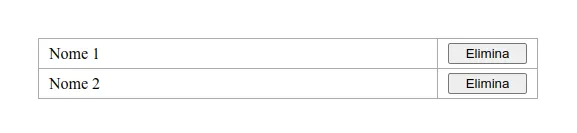
In this example we want to set up two event listeners, one for the whole row and one just for the Delete button.
If we used JavaScript code like the following
// select all buttons and all rows
const btns = document.querySelectorAll("button");
const rows = document.querySelectorAll("tr");

// add a click listener to individual buttons
btns.forEach(function (btn) {
  btn.addEventListener("click", function () {
    console.log("Deleted");
  });
});

// add a click listener to individual rows
rows.forEach(function (btn) {
  btn.addEventListener("click", function () {
    console.log("Details");
  });
});
clicking the row would correctly log Details to the console, but clicking the button would first log Deleted and right after that Details.
In this case, even though the function receives an event as a parameter, since we’re not using it we didn’t even write it. We’ll add it shortly.
Multiple events triggered — why does this happen?
When an event is triggered on a DOM node, unless something stops it (we’ll see how shortly), the event bubbles up the entire document tree to the root. Every event listener it finds along the way that’s listening for the same event gets triggered.
How can we fix this?
To avoid this, and be the only one handling the event, we can use the stopPropagation() method that every event has.
We know addEventListener passes an event parameter to the function, which in our example we’ll call event.
This is an object that represents the event, with all the details of where and how it happened.
Solution
Let’s modify our code so that, as soon as the event fires, its stopPropagation() method gets called.
const btns = document.querySelectorAll("td button");
const rows = document.querySelectorAll("tr");

btns.forEach(function (btn) {
  btn.addEventListener("click", function (event) {
    // <-- the event gets passed inside the `event` parameter
    event.stopPropagation(); // <-- stop the propagation
    console.log("Deleted");
  });
});

rows.forEach(function (btn) {
  btn.addEventListener("click", function (event) {
    // same as above
    event.stopPropagation(); // same as above
    console.log("Details");
  });
});
If we now try clicking the Delete button, the only message we’ll see in the console is the one tied to the buttons’ event handler. Event propagation has been intercepted and stopped. Good!
preventDefault()
There are scenarios where we want to block our page’s default behavior, for example:
- blocking a form submission if the conditions aren’t right;
- preventing a link click from triggering navigation;
- blocking invalid characters from being entered into an input field;
- etc.
In these situations we want the default action that would normally run when the event fires to not happen.
Scenario
Take for example the following code:
<form>
  <div>
    <label for="check">First click here</label>
    <input type="checkbox" id="check" />
  </div>

  <div>
    <label for="after">Then you can click here</label>
    <input type="checkbox" id="after" />
  </div>
</form>
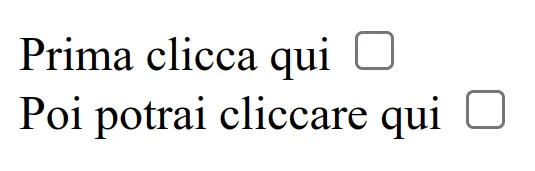
We have two checkbox inputs. We want the second one to only be clickable if the first one is checked, i.e. it has been activated.
Solution
We can write code like the following, which:
- selects the two inputs
- adds an event listener to the second one, identified as
after; - on click checks whether the first input, identified as
check, is checked;- if it’s not, it inhibits the default action with the event’s
preventDefault()method; - if it is, it doesn’t call that method, and so doesn’t block the normal behavior.
- if it’s not, it inhibits the default action with the event’s
const inputCheck = document.getElementById("check");
const inputAfter = document.getElementById("after");

inputAfter.addEventListener("click", function (event) {
  if (!inputCheck.checked) {
    event.preventDefault();
    console.log("Nope!");
  } else {
    console.log("Ok!");
  }
});
Conclusions
We’ve seen how we can use the two methods stopPropagation() and preventDefault(), which every event has, to get more precise and optimal control over our web page’s interactivity.
These methods let us intercept events and handle them without conflicts with other event listeners we might have on our page.
There are of course other methods and features you can find here:
Happy coding!

Co-Founder & CTO at PAPION. Senior software engineer with AI skills: React, TypeScript, Node.js, LLM and AI agent integration, and application security.